https://github.com/will127534/libcamera
https://github.com/will127534/libcamera/blob/master/src/ipa/rpi/cam_helper/cam_helper_imx662.cpp
https://github.com/will127534/libcamera/tree/master/src/ipa/rpi/pisp/data
https://github.com/will127534/libcamera/tree/master/src/ipa/rpi/vc4/data
辺りに書いてある部分から以下の部分をこのパスで取っておきます。
imx662_setup_unified.zip に入れました。
src
└─ipa
    └─rpi
        ├─cam_helper
        │      cam_helper_imx662.cpp
        │
        ├─pisp
        │  └─data
        │          imx662.json
        │          imx662_mono.json
        │
        └─vc4
            └─data
                    imx662.json
                    imx662_mono.json
新規にmicroSDカードを rpi-imager.exe で作成します。
デバイス:RaspberryPi Zero2WOS:Raspberry Pi OS (64-bit) (bookworm)
ストレージは、セットアップ後に6.2GBになるので、16GB以上必須です。
私のように試行錯誤をするなら、できるだけ書込み速度の速いものを使ってください。
新しいmicroSDカードで起動したら、ホームにコピーして展開してください。
何回もやるので、共有フォルダからコピーしやすい様のzipにまとめてダウンロードに置きました。
imx662_setup_unified.zip
imx662_setup
│  setup.sh           ・・・・・・・・・OS環境更新設定用
│  imx662_setup_1.sh  ・・・・・・・・・ドライバビルド用
│  imx662_setup_2.sh  ・・・・・・・・・libcameraとrpicam-apps作成用
│  cmdline.txt        ・・・・・・・・・うちの10インチディスプレイ用設定
│  config.txt         ・・・・・・・・・画が出たときのもの
│
└─src
    └─ipa
        └─rpi
            ├─cam_helper
            │      cam_helper_imx662.cpp
            │
            ├─pisp
            │  └─data
            │          imx662.json
            │          imx662_mono.json
            │
            └─vc4
                └─data
                        imx662.json
                        imx662_mono.json
最初にnanoが開きます。
Screen Configuration で解像度変更ができないときの対策です。
解像度に満足なら Ctrl+x で編集せずに抜けてください。
解像度は cmdline.txt の1行目末あたりを参考にしてください。
#!/bin/sh
# 初期設定 (共通)
set -eu

sudo nano /boot/firmware/cmdline.txt
sudo apt update
sudo apt upgrade -y
#sudo localectl set-locale LANG=ja_JP.UTF-8
sudo apt install -y fcitx-mozc

echo "初期設定が完了しました。再起動します。"
sudo reboot
#!/bin/sh
# ドライバ導入 (共通)
set -eu

DRIVER_TGZ="imx662-v4l2-driver_6_12_y-binning-fix.tgz"
DRIVER_DIR="imx662-v4l2-driver_6_12_y-binning-fix"
DRIVER_URL="https://soho-enterprise.com/wp/wp-content/uploads/2025/06/${DRIVER_TGZ}"

sudo apt update
sudo apt install -y dkms wget tar

if [ ! -f "${DRIVER_TGZ}" ]; then
    wget "${DRIVER_URL}"
fi

if [ ! -d "${DRIVER_DIR}" ]; then
    tar zxvf "${DRIVER_TGZ}"
fi

cd "${DRIVER_DIR}"
./setup.sh

echo "ドライバ導入が完了しました。再起動します。"
sudo reboot
最後にもnanoが開きます。
#!/bin/sh
# libcamera / rpicam-apps 作成 (Pi5 / Zero2W 統合・簡潔版)
set -eu

SCRIPT_DIR=$(CDPATH= cd -- "$(dirname -- "$0")" && pwd)
WORK_DIR="$SCRIPT_DIR"
PROFILE=${IMX662_PROFILE:-auto}
TOTAL_MEM=$(free -m | awk '/^Mem:/{print $2}')
MODEL=""
SWAP_CHANGED=0
USE_DPHYS_SWAP=0

if [ -r /proc/device-tree/model ]; then
    MODEL=$(tr -d '\000' < /proc/device-tree/model)
fi

if command -v dphys-swapfile >/dev/null 2>&1 && [ -f /etc/dphys-swapfile ]; then
    USE_DPHYS_SWAP=1
fi

# 実行プロファイルを決定する。
if [ "$PROFILE" = "auto" ]; then
    case "$MODEL" in
        *"Raspberry Pi Zero 2"*) PROFILE="zero2w" ;;
        *"Raspberry Pi 5"*) PROFILE="pi5" ;;
        *)
            if [ "$TOTAL_MEM" -le 1024 ]; then
                PROFILE="zero2w"
            else
                PROFILE="pi5"
            fi
            ;;
    esac
fi

# プロファイル別の設定。
if [ "$PROFILE" = "zero2w" ]; then
    BUILD_JOBS=1
    ENABLE_SWAP_BOOST=1
else
    BUILD_JOBS=$(nproc)
    ENABLE_SWAP_BOOST=0
fi

restore_swap() {
    if [ "$SWAP_CHANGED" -ne 1 ] || [ "$USE_DPHYS_SWAP" -ne 1 ]; then
        return
    fi

    echo "swap 設定を復元します..."
    sudo dphys-swapfile swapoff || true
    sudo sed -i "s/^#*CONF_SWAPSIZE=.*/CONF_SWAPSIZE=${ORIG_SWAPSIZE}/" /etc/dphys-swapfile
    if [ -n "${ORIG_MAXSWAP:-}" ]; then
        sudo sed -i "s/^#*CONF_MAXSWAP=.*/CONF_MAXSWAP=${ORIG_MAXSWAP}/" /etc/dphys-swapfile
    fi
    sudo dphys-swapfile setup || true
    sudo dphys-swapfile swapon || true
}
trap restore_swap EXIT

# Zero2W ではビルド前に swap を一時拡張する。
if [ "$ENABLE_SWAP_BOOST" -eq 1 ] && [ "$USE_DPHYS_SWAP" -eq 1 ]; then
    ORIG_SWAPSIZE=$(sudo awk -F= '/^#*CONF_SWAPSIZE=/{print $2; exit}' /etc/dphys-swapfile)
    ORIG_MAXSWAP=$(sudo awk -F= '/^#*CONF_MAXSWAP=/{print $2; exit}' /etc/dphys-swapfile || true)
    if [ -z "${ORIG_SWAPSIZE:-}" ]; then
        ORIG_SWAPSIZE=100
    fi

    echo "低メモリ向けに swap を一時的に 2048MB へ拡張します..."
    sudo dphys-swapfile swapoff || true
    sudo sed -i 's/^#*CONF_SWAPSIZE=.*/CONF_SWAPSIZE=2048/' /etc/dphys-swapfile
    if sudo grep -q '^#*CONF_MAXSWAP=' /etc/dphys-swapfile; then
        sudo sed -i 's/^#*CONF_MAXSWAP=.*/CONF_MAXSWAP=2048/' /etc/dphys-swapfile
    fi
    sudo dphys-swapfile setup
    sudo dphys-swapfile swapon
    SWAP_CHANGED=1
elif [ "$ENABLE_SWAP_BOOST" -eq 1 ]; then
    echo "dphys-swapfile 設定が無いため、swap 一時拡張をスキップします (zram 運用)。"
fi

echo "Detected model: ${MODEL:-unknown}"
echo "Selected profile: $PROFILE"
echo "Build jobs: $BUILD_JOBS"

sudo apt update
sudo apt install -y \
    cmake dkms dphys-swapfile git meson ninja-build python3-yaml python3-ply \
    libcamera-dev libepoxy-dev libjpeg-dev libtiff5-dev libpng-dev \
    libavcodec-dev libavdevice-dev libavformat-dev libswresample-dev \
    libopencv-dev libboost-dev libboost-program-options-dev libdrm-dev libexif-dev \
    libgnutls28-dev openssl pybind11-dev qtbase5-dev libqt5core5a libqt5gui5 libqt5widgets5 \
    libglib2.0-dev libgstreamer-plugins-base1.0-dev

cd "$WORK_DIR"
if [ -d libcamera ]; then
    rm -rf libcamera
fi
git clone https://github.com/raspberrypi/libcamera.git
cd libcamera

# IPA ルートはよく使われる 2 パターンだけを扱う。
IPA_ROOT=""
if [ -d src/ipa/rpi ]; then
    IPA_ROOT="src/ipa/rpi"
elif [ -d ipa/rpi ]; then
    IPA_ROOT="ipa/rpi"
fi

if [ -n "$IPA_ROOT" ] && [ -d "$SCRIPT_DIR/src/ipa/rpi" ]; then
    cp -f "$SCRIPT_DIR/src/ipa/rpi/cam_helper/cam_helper_imx662.cpp" "$IPA_ROOT/cam_helper/" 2>/dev/null || true
    cp -f "$SCRIPT_DIR/src/ipa/rpi/vc4/data/imx662.json" "$IPA_ROOT/vc4/data/" 2>/dev/null || true
    cp -f "$SCRIPT_DIR/src/ipa/rpi/vc4/data/imx662_mono.json" "$IPA_ROOT/vc4/data/" 2>/dev/null || true
    cp -f "$SCRIPT_DIR/src/ipa/rpi/pisp/data/imx662.json" "$IPA_ROOT/pisp/data/" 2>/dev/null || true
    cp -f "$SCRIPT_DIR/src/ipa/rpi/pisp/data/imx662_mono.json" "$IPA_ROOT/pisp/data/" 2>/dev/null || true

    if [ -f "$IPA_ROOT/cam_helper/meson.build" ] && ! grep -Fq "'cam_helper_imx662.cpp'," "$IPA_ROOT/cam_helper/meson.build"; then
        sed -i.bak "14i\\
    'cam_helper_imx662.cpp'," "$IPA_ROOT/cam_helper/meson.build"
    fi

    if [ -f "$IPA_ROOT/vc4/data/meson.build" ] && ! grep -Fq "'imx662.json'," "$IPA_ROOT/vc4/data/meson.build"; then
        sed -i.bak "18i\\
    'imx662.json',\\
    'imx662_mono.json'," "$IPA_ROOT/vc4/data/meson.build"
    fi

    if [ -f "$IPA_ROOT/pisp/data/meson.build" ] && ! grep -Fq "'imx662.json'," "$IPA_ROOT/pisp/data/meson.build"; then
        sed -i.bak "18i\\
    'imx662.json',\\
    'imx662_mono.json'," "$IPA_ROOT/pisp/data/meson.build"
    fi
else
    echo "警告: libcamera の rpi IPA パスが見つからないため、imx662 追加パッチはスキップします。"
fi

MESON_ARGS="--buildtype=release -Dpipelines=rpi/vc4,rpi/pisp -Dipas=rpi/vc4,rpi/pisp -Dv4l2=true -Dgstreamer=enabled -Dtest=false -Dlc-compliance=disabled -Dcam=disabled -Dqcam=disabled -Ddocumentation=disabled -Dpycamera=enabled"
if [ -d build ]; then
    meson setup build --reconfigure $MESON_ARGS
else
    meson setup build $MESON_ARGS
fi
meson compile -C build -j "$BUILD_JOBS"
sudo meson install -C build

cd "$WORK_DIR"
if [ -d rpicam-apps ]; then
    rm -rf rpicam-apps
fi
git clone https://github.com/raspberrypi/rpicam-apps.git
cd rpicam-apps

if [ -d build ]; then
    meson setup build --reconfigure -Denable_libav=enabled -Denable_drm=enabled -Denable_egl=enabled -Denable_qt=enabled -Denable_opencv=enabled -Denable_tflite=disabled -Denable_hailo=disabled
else
    meson setup build -Denable_libav=enabled -Denable_drm=enabled -Denable_egl=enabled -Denable_qt=enabled -Denable_opencv=enabled -Denable_tflite=disabled -Denable_hailo=disabled
fi
meson compile -C build -j "$BUILD_JOBS"
sudo meson install -C build
sudo ldconfig

# config.txt は機種別ブロックで管理する。
BOOT_CONFIG="/boot/firmware/config.txt"
BEGIN_MARK="# IMX662_UNIFIED_BEGIN"
END_MARK="# IMX662_UNIFIED_END"

if sudo grep -q '^#*camera_auto_detect=' "$BOOT_CONFIG"; then
    sudo sed -i 's/^#*camera_auto_detect=.*/camera_auto_detect=0/' "$BOOT_CONFIG"
else
    echo "camera_auto_detect=0" | sudo tee -a "$BOOT_CONFIG" >/dev/null
fi

sudo sed -i 's/^dtoverlay=imx662/#dtoverlay=imx662/' "$BOOT_CONFIG"

TMP_CFG=$(mktemp)
sudo cat "$BOOT_CONFIG" | awk -v begin="$BEGIN_MARK" -v end="$END_MARK" '
    $0 == begin { skip=1; next }
    $0 == end { skip=0; next }
    skip != 1 { print }
' > "$TMP_CFG"

cat <<'EOF' >> "$TMP_CFG"

# IMX662_UNIFIED_BEGIN
# Managed by imx662_setup_unified/imx662_setup_2.sh
[pi4]
dtoverlay=imx662,2lane

[all]
# IMX662_UNIFIED_END
EOF

sudo cp "$TMP_CFG" "$BOOT_CONFIG"
rm -f "$TMP_CFG"

cd "$WORK_DIR"
rm -f imx662-v4l2-driver_6_12_y-binning-fix.tgz
rm -rf libcamera
rm -rf rpicam-apps

echo "セットアップが完了しました。再起動します。"
sudo reboot
cp -r ../src . の部分は git で取って来れるようにしたかったのですがうまくいきませんでした。うまくいく方法を知ってる方は教えてください。
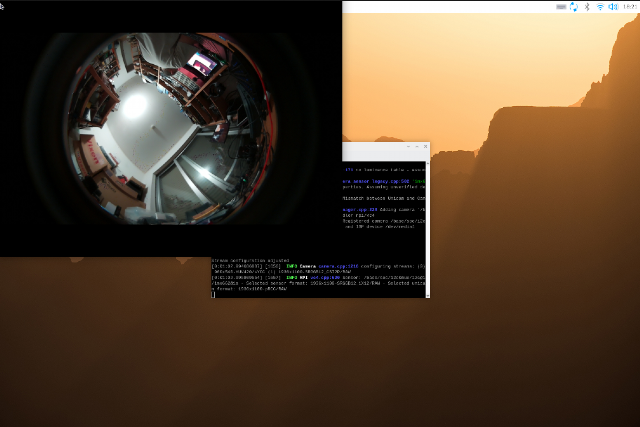
rpicam-hello を実行して画が出ることを確認します。
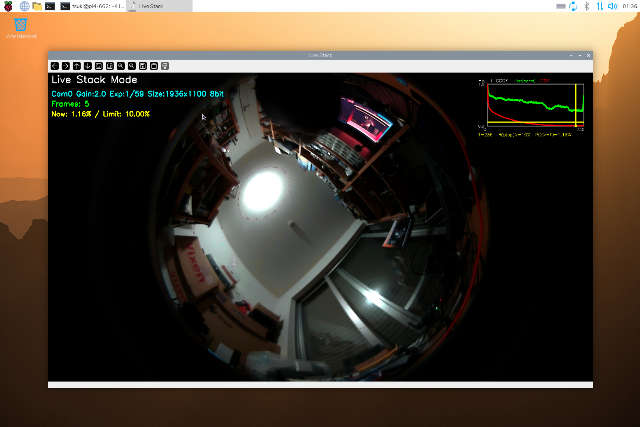
live_stack.py も実行して画が出ることを確認します。